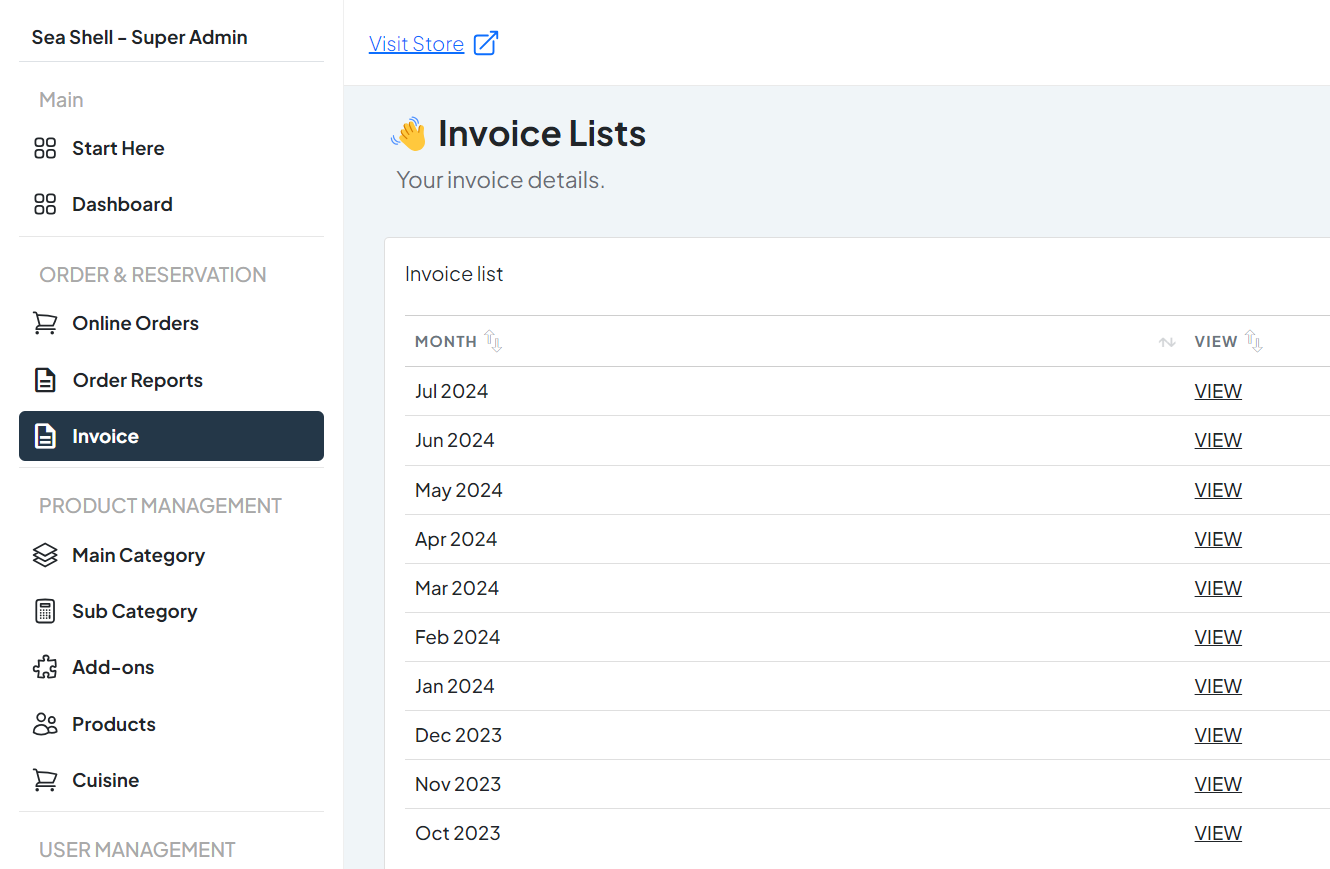
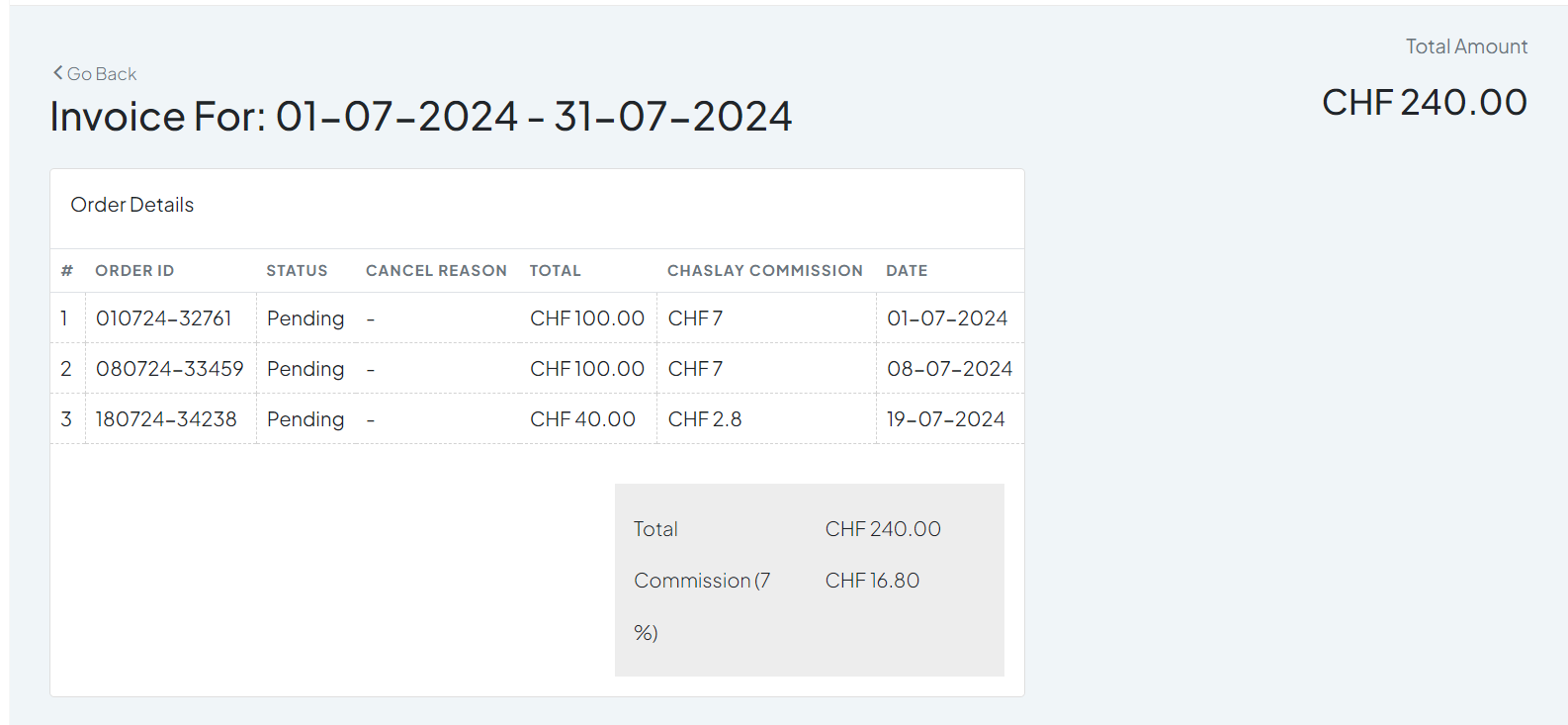
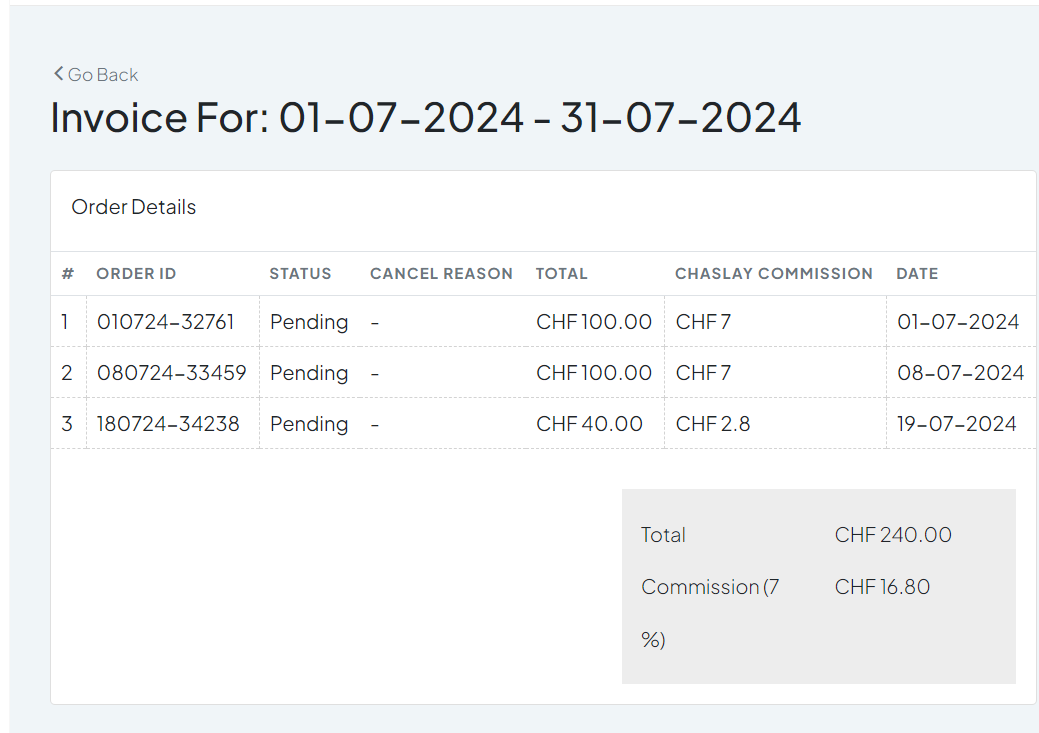
Upon clicking ‘View,’ a detailed list of orders for the selected month will be displayed. This includes:
Order ID: Unique identifier for each order.
Status: Current status of each order (e.g., Pending, Confirmed, In Progress, Completed, Cancelled).
Cancel Reason: Reason for cancellation, if applicable.
Total: Total amount for each order.
Chaslay Commission: Commission charged by Chaslay for each order.
Date: Date the order was placed.
Total Amount of the Month: Aggregate total amount for all orders within the selected month.
By following these steps, you can easily access and manage your invoices within the Chaslay platform, ensuring efficient financial operations and clear record-keeping.