How to Access and Modify Website Colors, Banners, and Images: #
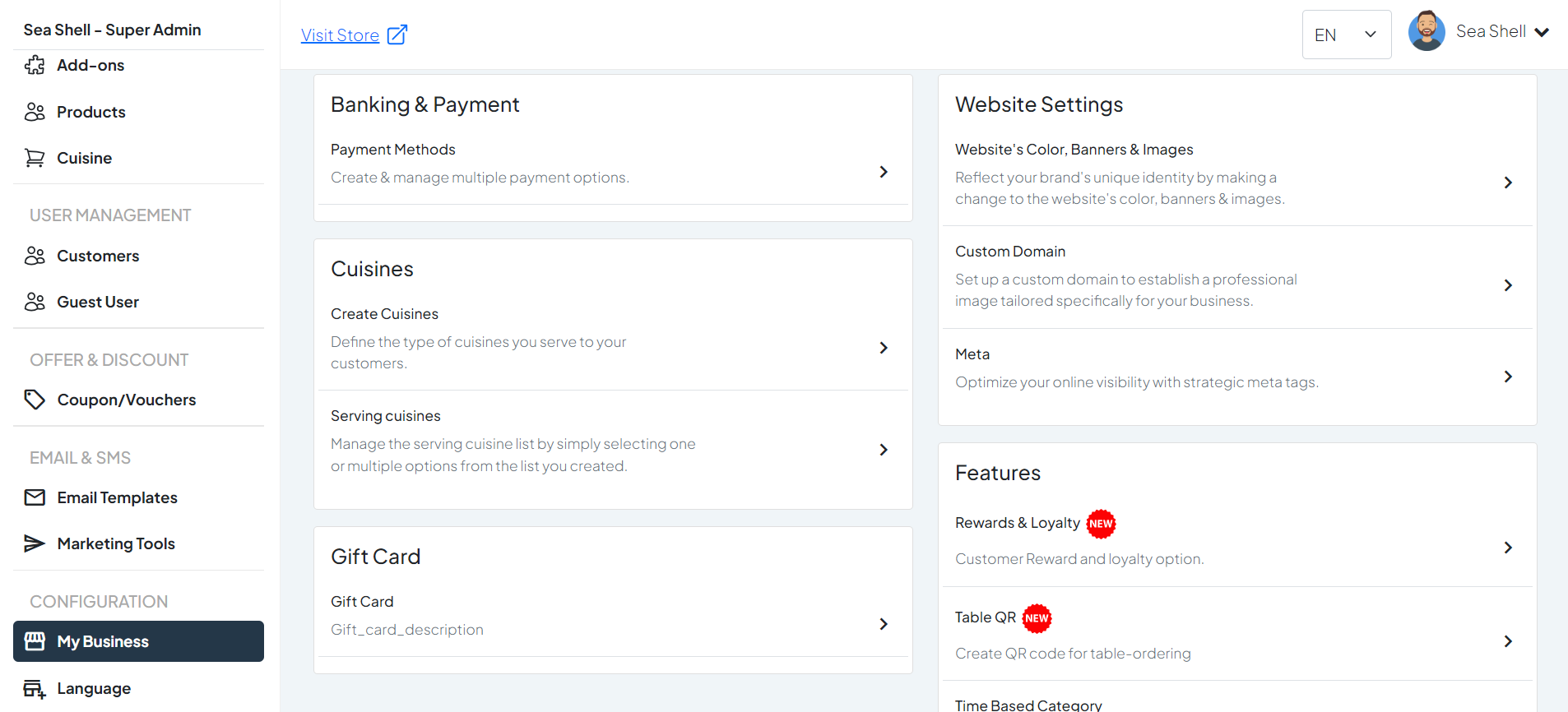
- Click on My Business under the Configuration section. This will directly take you to the My Business page.
- On the My Business page, you will see various options under Website Settings.
- Click on Website’s Color, Banners & Images. This will take you to the page where you can manage and update your business profile.
1
My Business
2
Website Settings
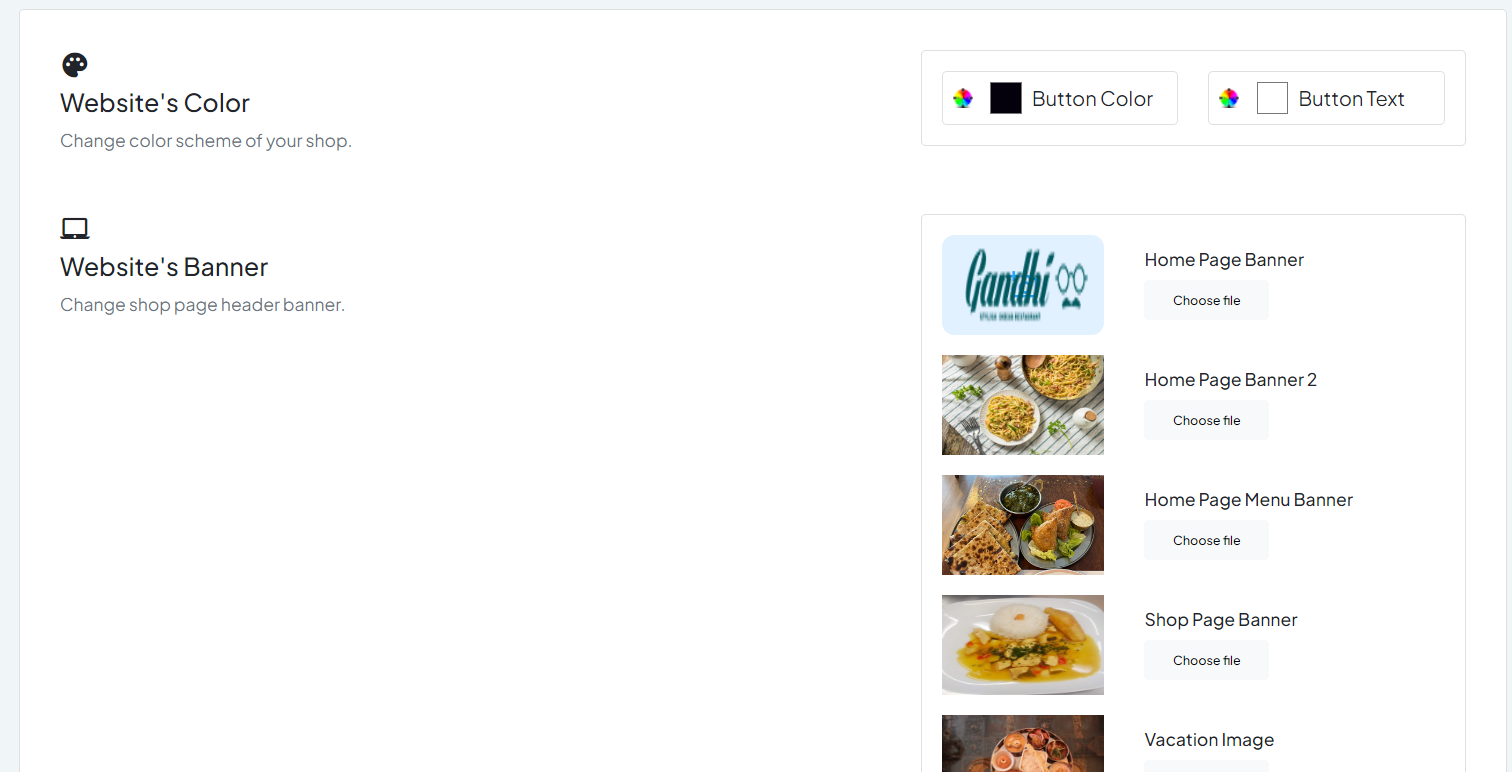
Configure Shop Color: #
- You will see options to change the Button text and background colors for your store.
- Choose the desired colors using the color picker or by entering the hex codes.
Change Shop Page Header Banner: #
- Upload a new image or select an existing one to change the shop page header banner.
- Adjust the image as needed to fit the banner space.
1
Meta Title
2
Meta Description
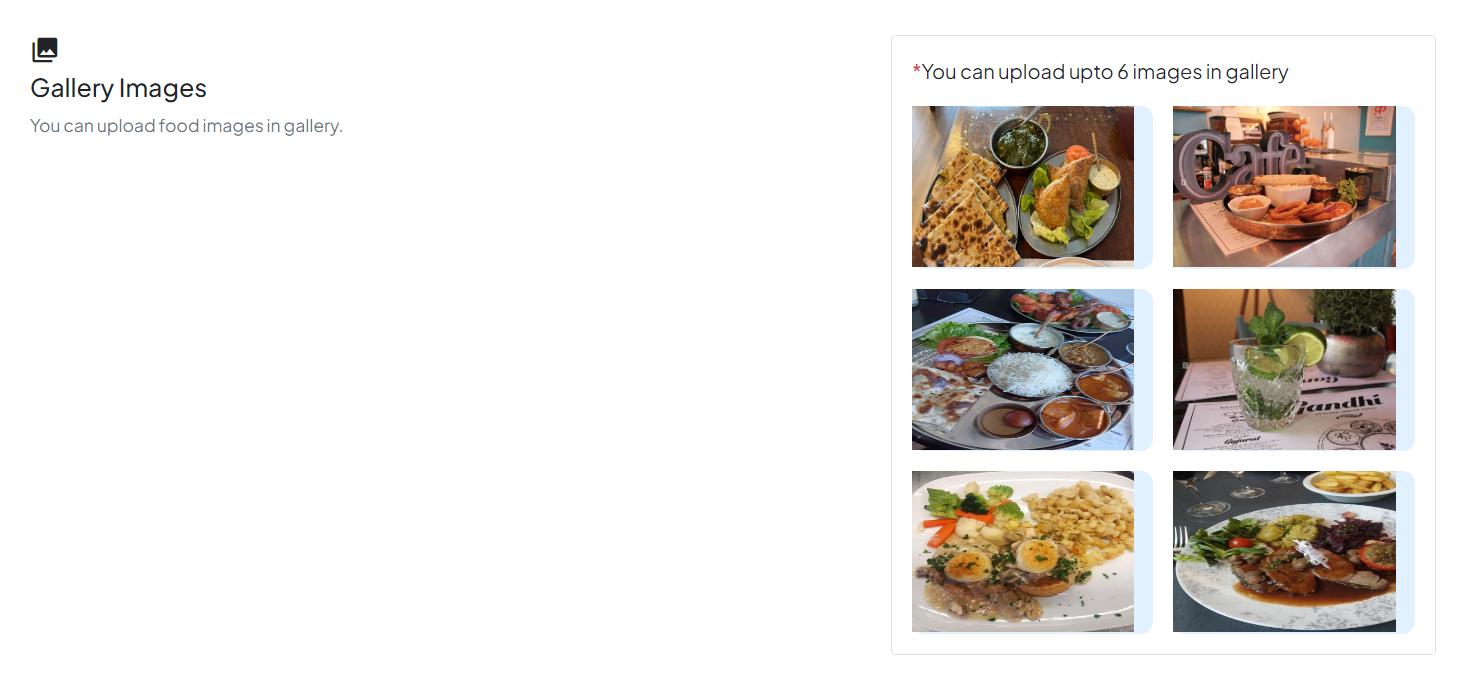
Add or modify Gallery Images: #
- Click on ‘Add New’ or a similar option to upload new images to the gallery.
- Select the images from your computer and upload them to the gallery.
3
Meta Description
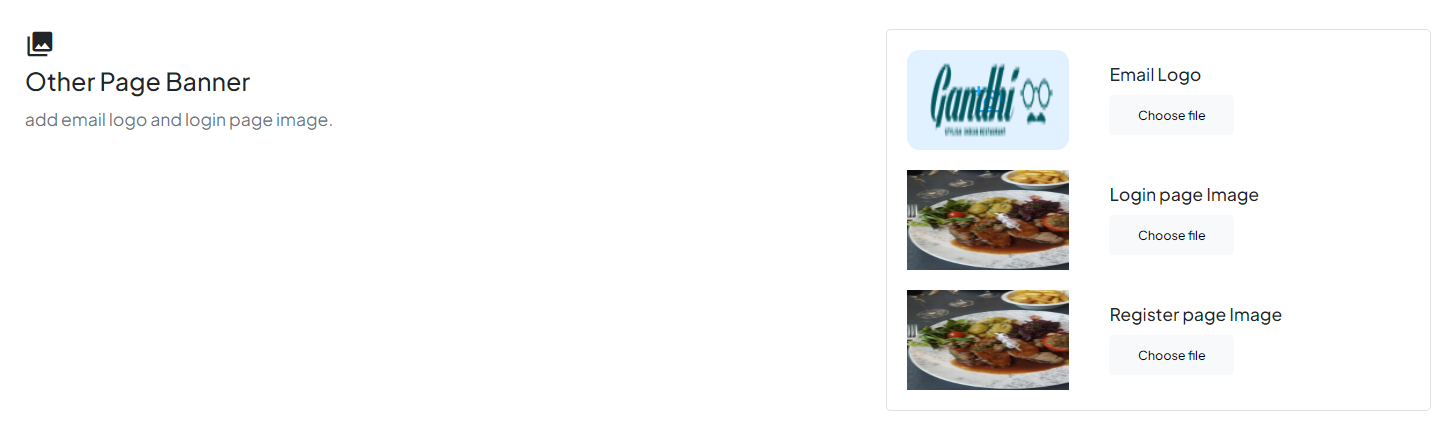
4. Add Email Logo and Images for Login & Register Pages: #
- Upload images for the email logo and the login & register pages.
- Adjust the images to fit the designated spaces on the pages.
4
Meta Description