
1. Open Chaslay Website #
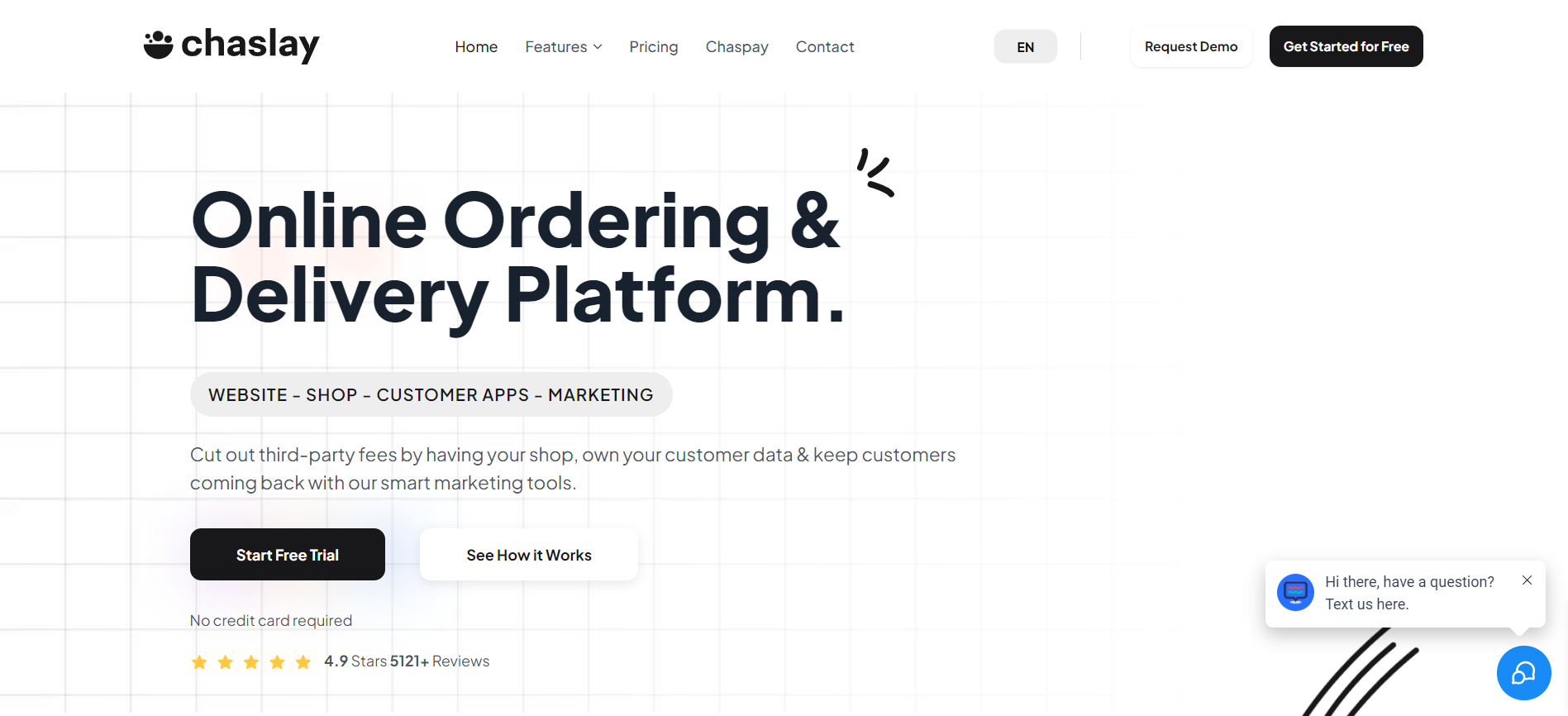
- Launch the Chaslay website https://chaslay.com/en/ on your web browser.
- Click on the “Get Started for free” button usually found on the homepage or open https://signup.chaslay.com/ .
1
Create Account
2. Register Account to Chaslay #
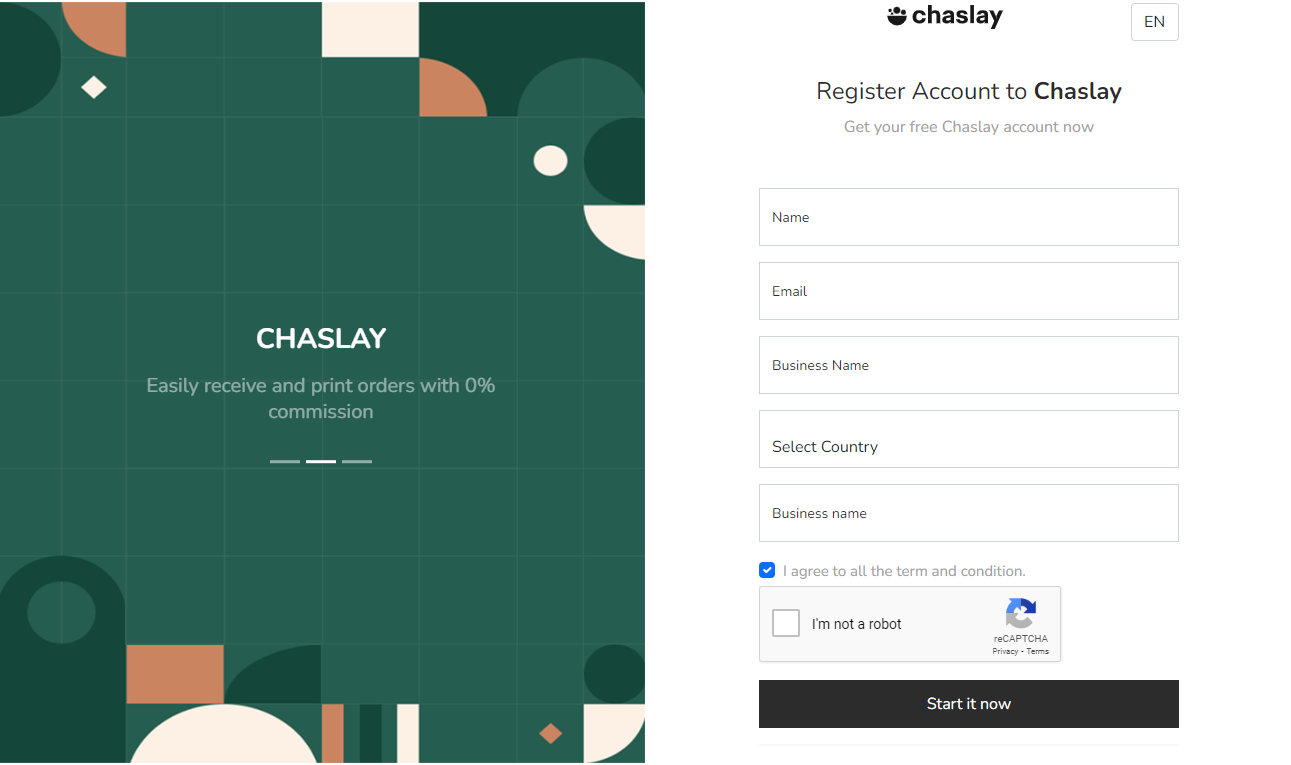
- Your Name: Enter your full name.
- Business Email: Enter the email address associated with your business
- Business Name: Enter the name of your business.
- Select Country: Choose your country from the dropdown menu.
- Business URL: This will be auto-generated based on your business name (e.g.,
mybusiness.chaslay.com).
After registration, you will be redirected to the Chaslay user admin panel and you will also receive an email with a temporary password.
3. How to Configure Account #
Step 1: Change Temporary Password #
- Upon first login, you may be prompted to change your temporary password to a new secure password.
- Follow the instructions to update your password here.
Step 2: Complete Business Profile #
- Navigate to the “My Business” section.
- Fill in any additional required business details.
- Save your profile.
Step 3: Configure Settings #
Go through various settings such as Pickup & Delivery, Website Settings, and Payment Options to configure your store according to your business needs.
Step 4: Add Products #
Use the Product Management section to add categories, products, and addons.
Step 5: Test Your Setup #
Place a test order to ensure everything is functioning correctly.
Now your Chaslay account is set up and ready to use! If you need further customization or assistance, refer to the Chaslay admin panel documentation or contact support.