How to Access and Modify Add-ons: #
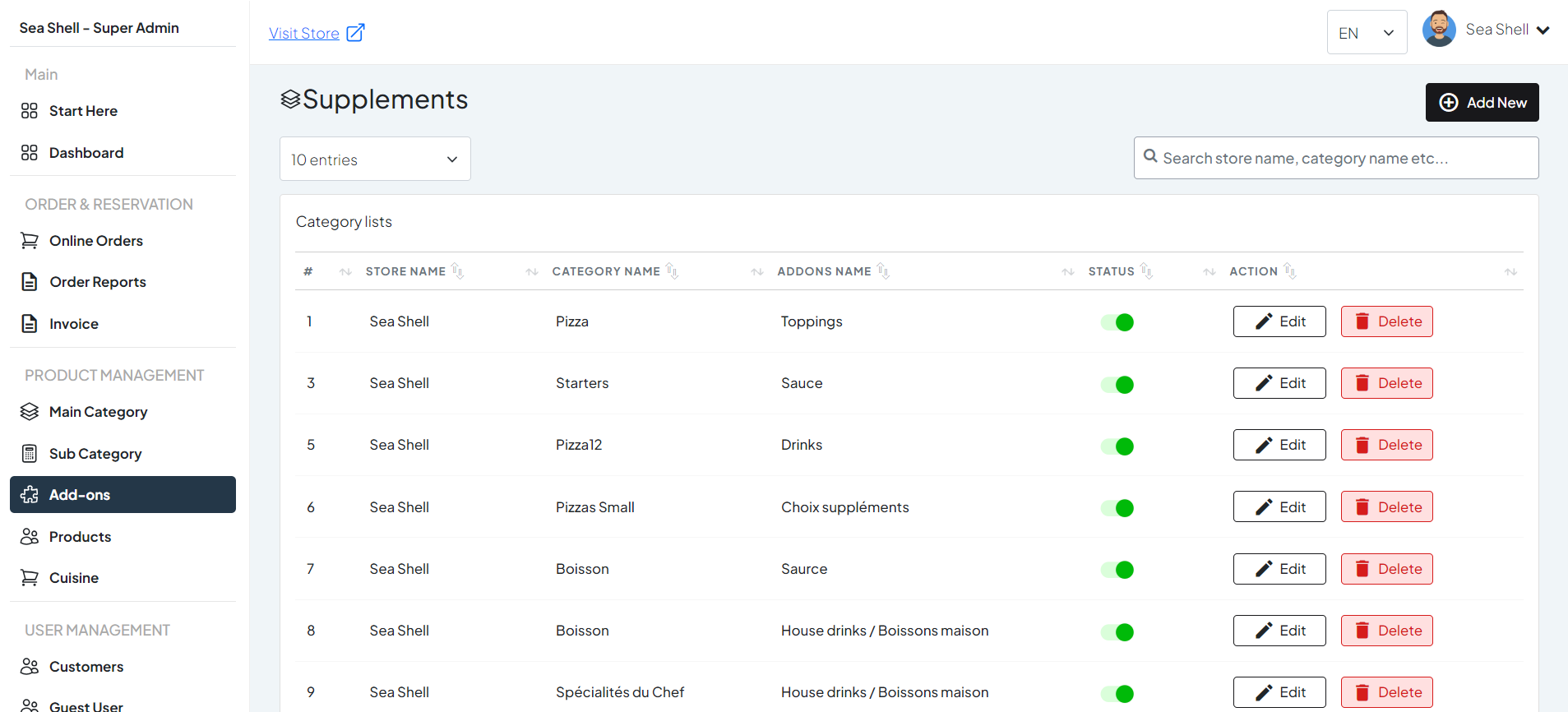
- Click on Add-ons under the Product Management section. This will directly take you to the Products list page.
- On the Add-ons page, you will see various options such as Add new, edit or delete.
1
Dashboard > Add-ons
2
Add new Add-on
3
edit Add-ons
4
Delete Add-ons
Select Store and Global Setting: #
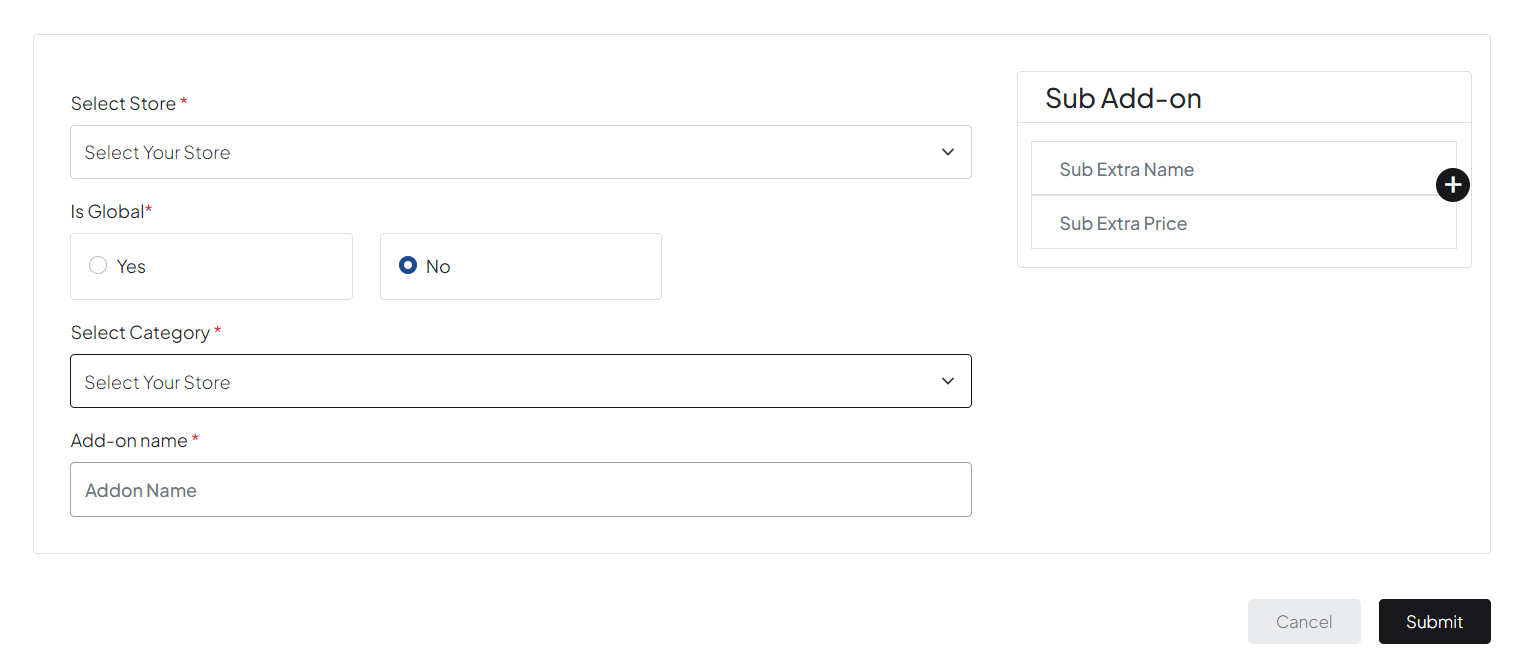
- Select Store: Choose the store where the addon will be applied.
- Global Addon Setting: Set this to “Yes” if you want the addon and its subaddons to show in all products. Set this to “No” if you want to specify categories.
Assign Addon to Categories (if Global is set to No): #
- If you set the global addon setting to “No,” you will need to select the specific categories where you want the addon to be available.
- Choose the categories from the list.
Add Subaddons: #
- Within the addon, you can add subaddons.
- Subaddon Name: Enter the name of the subaddon (e.g., Cheddar Cheese, Mozzarella Cheese).
- Price: Set the price for the subaddon.
Assign Addon to Products #
- If needed, navigate to the “Products” section under “Product Management.”
- Select the product to which you want to add the addon.
- In the product details, look for the “Addons” section.
- Select the addons you want to associate with this product.
- Save the product changes.